

Take the files out of a tar.gz, without a terminal.
Extract a tar.gz, .tgz or .tar in your browser, with nothing uploaded: see every file first, then take out all of it, one folder or one file.
By Suraj Kumar5 min read
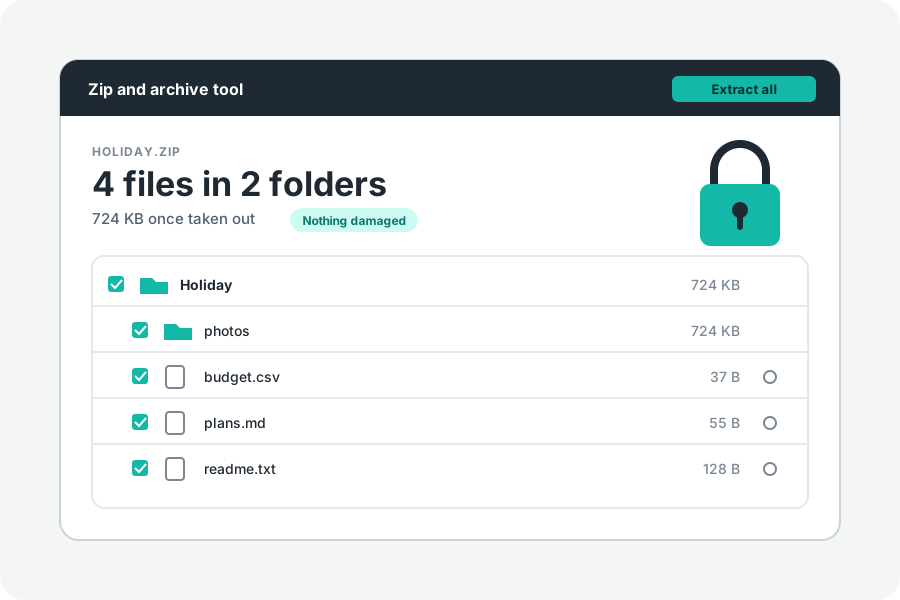
A tar.gz is how Linux, servers and most source code hand over a folder: the files are put one after another into a tar, and the whole tar is packed smaller with gzip. On a terminal, `tar -xzf` takes it apart. Without one, KeepSimp does it in your browser. Nothing in the archive is sent anywhere.
Drop the archive on the page.
Open Extract a tar.gz and drop the file on it, or press Choose a file. It opens .tar.gz and .tgz files, plain .tar files and single .gz files. What kind of file it is comes from its first bytes, not its name, so a tar.gz saved without its ending still opens.
A tar.gz is read from its start to its very end before its list is shown. That is how gzip works: there is no index to jump to. It also means the list doubles as a test, since the gzip checksum at the end is checked on the way. A plain .tar is listed from its headers alone, which takes a moment however large it is.
Every file and folder is shown as a tree with its size and date. The eye beside a file previews it: pictures, text and code, sound and video.
Take out all of it, a folder or one file.
Every file starts chosen. Untick what you do not want, or tick one folder. In Chrome and Edge on a computer, Extract all into a folder writes the files into a folder you choose, with their folders. In every browser, Download saves one file as it is, or several as one ZIP with no password, which your device opens by itself.
A tar.gz has no index, so taking out one file means unpacking everything before it. A file near the end of a large archive takes as long as unpacking the whole thing. From a plain .tar, each file is read straight from its place.
The ._ files that macOS tar adds are hidden, as are the other files Macs and Windows add. Turn off Hide files Macs and Windows add under More options to see them.
What is listed and never written.
A tar can hold more than files and folders. Symbolic links are listed and never made, so an archive cannot point a file at a place outside the folder you chose. A hard link, a second name for a file already in the archive, is taken out under its first name. Devices and named pipes are listed as other kinds and left.
Names that start at the top of the disk (/etc/…) or climb out with ../ are refused with the reason, as Python's tarfile now refuses them by default. Sparse files, which macOS tar writes for files with holes such as disk images, are listed and not taken out rather than written wrongly.
What does not come out with the files.
A tar keeps each file's owner, group and permissions. A browser cannot set them, so a script that could be run in the archive comes out as a plain file, and every file gets today's date, as every file a browser writes does. Extended attributes, such as the Mac's quarantine flag, are counted in a note and never written.
If you need owners and permissions kept exactly, as when restoring a server, use `tar -xzpf` on that machine. For reading, copying and editing what is inside, the files are the same bytes either way.
A tar.gz that is damaged or cut short.
Every gzip file ends with a CRC-32 checksum and the length of what it holds, and both are checked. A tar header whose own checksum fails, or an archive that stops in the middle of a file, is said to be damaged. Check for damage reads the whole archive through those checks without writing anything.
A download that stopped early is the usual cause: the files before the break are often whole, but the archive as a whole is not, so download it again.
Further reading
- GNU tar manual: creating and reading compressed archives (opens in a new tab)
- RFC 1952: GZIP file format specification (opens in a new tab)
- pax: the pax interchange format, POSIX.1-2024 (The Open Group) (opens in a new tab)
- PEP 706: filter for tarfile.extractall, Python (opens in a new tab)
- Window: showDirectoryPicker() method, MDN (opens in a new tab)
Topics: extract tar.gz · open tar.gz file · tar.gz extractor online · open tgz file · extract tar file · untar online · tar.gz on windows · tar -xzf
A little less theory. A little more doing.
Try it on your own terms, with a free browser tool.
Try the tool