

ZIP, 7z or tar.gz: which one to use.
Make and open ZIP and tar.gz in your browser, with nothing uploaded. ZIP, 7z or tar.gz: what each is good at, who opens it, and which to use when.
By Suraj Kumar5 min read
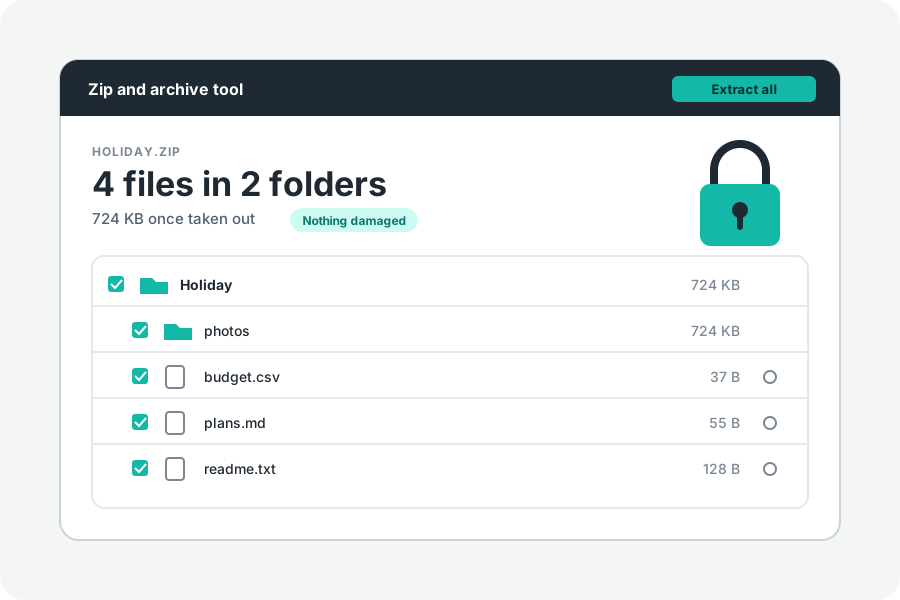
All three put many files into one and make them smaller. They differ in who can open them, how small they get, and what they keep. Most of the time the choice comes down to one question: who is going to open it?
ZIP: when anyone may open it.
Each file in a ZIP is packed on its own, usually with Deflate, and a list of every file sits at the end. A program can read that list and take out one file without reading the rest. Windows, macOS, iPhone, Android and ChromeOS all open ZIP files by themselves.
A ZIP can carry a password. AES-256 is strong, but Windows Explorer and the Mac's Archive Utility cannot open it; 7-Zip, WinZip and Keka can. The names of the files stay readable either way. Packing each file alone costs some size with many small, similar files.
7z: when smallest matters most.
7z is 7-Zip's own format. It packs with LZMA or LZMA2 and, by default, packs many files together as one solid block, so it usually comes out smaller than a ZIP, most of all with many similar files. Its AES-256 password can hide the names of the files too.
It needs 7-Zip, Keka, The Unarchiver or a similar program; Microsoft says Windows 11 from version 24H2 supports it as well. Taking one file out of a solid block means unpacking what comes before it in that block.
This tool opens 7z files and takes their files out, but does not make them; a 7z locked with a password cannot be opened yet. To send something, it makes a ZIP or a tar.gz.
tar.gz: for Linux, servers and code.
A tar puts files one after another, with each file's owner, permissions and links. Gzip then packs the whole tar as one stream. Like 7z, that often beats ZIP with many small, similar files, but gzip packs less tightly than LZMA. It is what source code, Linux software and servers use, and every Linux and Mac has tar and gzip built in.
It has no list of files and no password. Seeing what is inside, or taking one file out, means unpacking from the start. tar.xz, tar.bz2 and tar.zst are the same idea with other compressors; this tool opens those too, but makes only tar.gz.
Which one to use.
Sending files to someone, or putting them on a site for anyone: ZIP. It opens everywhere with nothing to install.
Uploading to a Linux server or a hosting panel, or sharing code: tar.gz, which keeps the folders as Linux tools expect.
Keeping something as small as it goes, for people who have 7-Zip: 7z.
Locking it with a password: ZIP with AES-256, or 7z if the names must be hidden too. Fitting an email: a ZIP cut into parts.
What this tool makes and opens.
The Zip and archive tool opens ZIP (locked, in parts and over 4 GB too), TAR, tar.gz and .gz files, RAR, 7z, tar.xz, tar.bz2 and tar.zst, and makes ZIP, tar.gz, tar and .gz files, all in your browser with nothing uploaded. A tar.gz you were sent can be saved as a ZIP in one press.
Further reading
- APPNOTE.TXT: the .ZIP file format specification, PKWARE (opens in a new tab)
- 7z format, 7-Zip (opens in a new tab)
- GNU tar manual: creating and reading compressed archives (opens in a new tab)
- RFC 1952: GZIP file format specification (opens in a new tab)
- Zip and unzip files, Microsoft Support (opens in a new tab)
Topics: zip vs 7z · zip vs tar.gz · 7z vs tar.gz · best archive format · which compression format · tar.gz or zip · 7z or zip · archive formats compared
A little less theory. A little more doing.
Try it on your own terms, with a free browser tool.
Try the tool